Short answer
Every major DAW finds the BPM of a sample without a plugin or a website. In FL Studio, right-click the audio clip and choose Detect tempo. In Ableton Live, drop the clip on a track with Warp on and read the Seg. BPM box. In Logic Pro, use Smart Tempo and choose Apply Region Tempo to Project Tempo. If the file is not in a project yet, tap the tempo first on the Tap BPM tool on the homepage, then confirm it inside your DAW with the steps below.
FL Studio: Detect Tempo
- Drag the sample into the Playlist or the Channel Rack.
- Click the small waveform icon at the top left of the audio clip and choose Detect tempo.
- If the file has no tempo tag, FL asks you to pick a range: 75 to 150 BPM covers most pop, hip hop and house, 100 to 200 BPM suits faster material. Pick wrong and FL reports half the real tempo.
- FL shows a list of candidate BPMs with the most likely one highlighted. Click it.
- FL asks whether to set the project tempo to match. Say yes only if the whole project should run at the sample tempo, or note the number down and say no.
FL Studio: Edison and Tap Tempo
For a closer look, open the sample in Edison from the clip menu, right-click the grey bar under the toolbar and choose Autodetect. Pick “Detection for songs with constant tempo” for a full track or a steady loop. Edison shows the tempo to one decimal place, such as 127.3. Round it to the nearest whole number, unless the sample drifts, in which case keep the decimal.
When detection gives a strange number, tap it out instead: right-click the tempo number in the top toolbar, choose Tap and tap along for at least 8 beats. Tap tempo works on vocals, swung grooves and anything else the detector cannot read.
Ableton Live: Auto-Warp and Seg. BPM
- Drag the clip onto an audio track.
- Open Clip View and make sure Warp is on in the Sample tab. Live analyses the clip and shows the tempo it was recorded at in the Seg. BPM box.
- If the number is half or double what you expect, right-click a warp marker and choose :2 or 2* to flip it.
- For long files, right-click the clip and choose Analyze Audio first for a fuller analysis.
- If the groove drifts, right-click the first downbeat, choose Warp From Here (Straight) and drop warp markers on the transients every few bars.
Warp modes do not change detection: Beats suits drums, Complex and Complex Pro suit full mixes and vocals. Recorded audio works the same way: record into an audio track, select the clip, turn Warp on and read Seg. BPM.
Logic Pro: Smart Tempo and Beat Mapping
- Go to File, then Project Settings, then Smart Tempo. Adapt makes the project tempo follow the recording. Keep makes the audio follow the project tempo.
- Use Adapt for a live recording or a loop with its own feel, and Keep for fixed-tempo electronic loops. Picking the wrong mode is the most common Logic tempo mistake.
- To apply the detected tempo, select the region and go to Edit, then Tempo, then Apply Region Tempo to Project Tempo.
- For manual control, use Beat Mapping: go to View, then Show Beat Mapping, and drag the markers onto the downbeats. Logic builds a tempo map, the right tool for songs that speed up or slow down.
- Tap Tempo is on the T key. Tap along and the project tempo updates.
For Apple Loops and audio regions, enable Follow Tempo in the region inspector so the region follows project tempo changes.
DAW tempo detection at a glance
| DAW | Built-in tool | Best for | Watch out |
|---|---|---|---|
| FL Studio | Detect tempo, Edison | Quick detection of loops and samples | Pick the right range or it halves the tempo |
| Ableton Live | Auto-Warp, Seg. BPM | Warping, remixing, drifting audio | Check Seg. BPM before you start warping |
| Logic Pro | Smart Tempo, Beat Mapping | Live recordings, tempo changes | Adapt and Keep do opposite things |
| Pro Tools | Beat Detective, Identify Beat | Multitrack drums | Slower, more clicks |
| Reaper | Dynamic Split | Budget setup, tempo mapping | Needs the SWS extension for full mapping |
Worked example: a 140 BPM drill loop that reads as 70
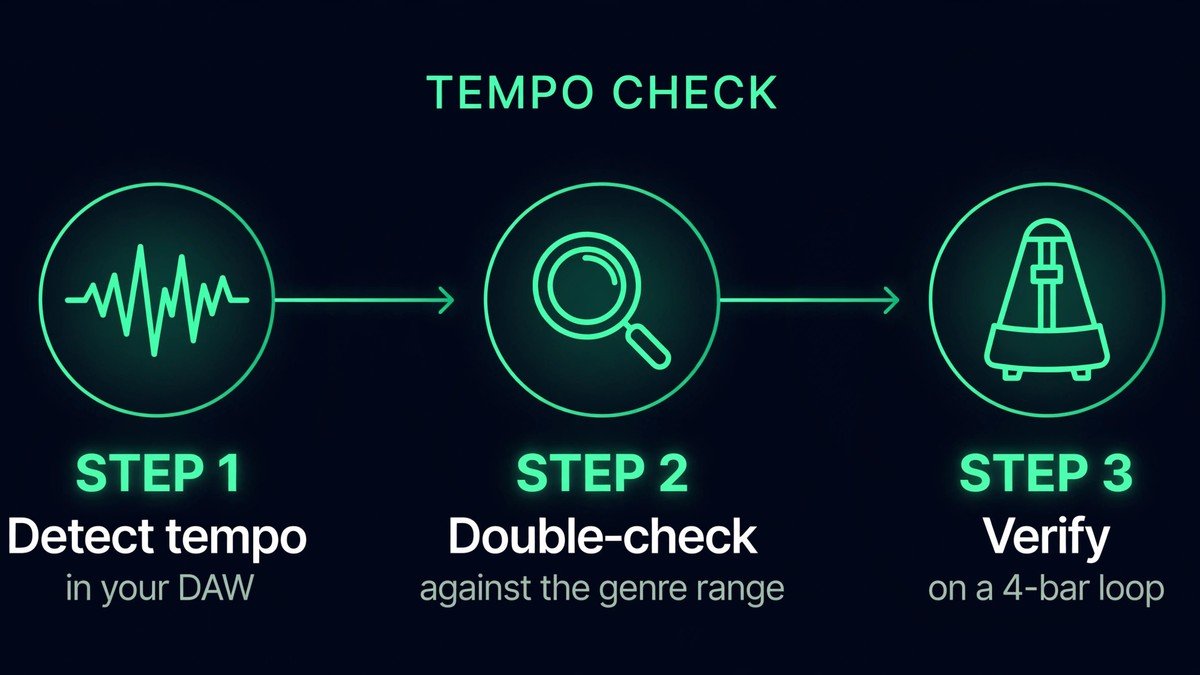
Take a drill loop. Detect tempo in FL Studio says 70 BPM, but the loop sounds fast, the snare lands on beat 3, and drill sits at 140 to 150 BPM. Double it: 140 BPM.
Check it with the maths: one beat at 140 BPM lasts 60,000 / 140 = 428.6 ms, and a 4-bar loop in 4/4 holds 16 beats, so it lasts 6.86 seconds. Time it with a stopwatch: 4 bars in 6.86 seconds means 960 / 6.86 = 140 BPM. Both routes agree.
In Ableton the same loop shows Seg. BPM 70 until you choose 2* on a warp marker; in Logic, Smart Tempo gives the same 70 reading, so check it against the genre range first.
Verify it: set the project to 140 BPM, loop 4 bars against the metronome and listen for 30 seconds. If the kick locks to the click, the BPM is correct. If it drifts, use warp markers for a human-played performance, keep the decimal for a fractional BPM such as 89.5, or build a tempo map for a song that changes tempo.
When detection fails: the fallback ladder
Detection fails on the same material every time: acapellas, swung grooves, live drums that rush the chorus, and loops shorter than 2 bars. Work down this ladder in order.
- Tap tempo. Tap 8 to 16 times on the perceived beat. It works on anything with a pulse you can hear.
- Manual warp markers: Warp From Here in Ableton, Beat Mapping in Logic, the stretch tool in FL. This is the fix for live drums and tempo drift.
- Stretch to a click. Drop a 120 BPM click in your DAW and stretch the sample until the kicks line up over 4 bars. Original BPM = 120 / stretch ratio: stretched to 87 percent, the original was 120 / 0.87 = 138 BPM.
Common mistakes
- Accepting the first number without a genre check. A 70 reading on a drill loop is half-time, not a slow song.
- Setting the project tempo to the detected value before checking it. Every clip in the project then stretches to the wrong tempo.
- Forgetting Warp or Follow Tempo is on. Set the clip’s original BPM first, or the sample plays at the project tempo and sounds wrong.
Frequently asked questions
How do I find the BPM in FL Studio?
Right-click the clip, choose Detect tempo, pick the most likely range and read the candidate list. Edison gives a closer reading, Tap tempo a quick check.
How do I find the BPM in Ableton Live?
Drop the clip on a track with Warp on and read the Seg. BPM box. If the number is half or double the real tempo, right-click a warp marker and choose :2 or 2*.
How do I find the BPM in Logic Pro?
Use Smart Tempo, Adapt for live recordings or Keep for fixed-tempo loops, then Edit, Tempo, Apply Region Tempo to Project Tempo. Beat Mapping covers songs that change tempo.
Why does FL Studio say 70 BPM when the sample sounds like 140?
That is half-time detection: the algorithm locked onto the snare on beat 3. Double the number and verify it on a 4-bar loop.